MCP Server (Model Context Protocol)
PingCRM includes an MCP server that lets AI clients query your CRM data. Connect Claude Desktop, Cursor, VS Code, or any MCP-compatible client to search contacts, view interactions, check suggestions, and read network health stats without opening the web app. All six tools are read-only.
Available Tools
| Tool | Description |
|---|---|
search_contacts | Search by name, company, tag, score tier (strong/warm/cold), or priority |
get_contact | Full profile by contact ID or fuzzy name search |
get_interactions | Recent interactions with a contact, with read receipt indicators on outbound messages |
get_suggestions | Pending follow-up suggestions with contact names and trigger types |
get_notifications | Recent notifications (unread or all) |
get_dashboard_stats | Network health: total contacts, score distribution, pending suggestions, 7-day activity |
All tools return Markdown-formatted text.
Setup
1. Generate an API Key
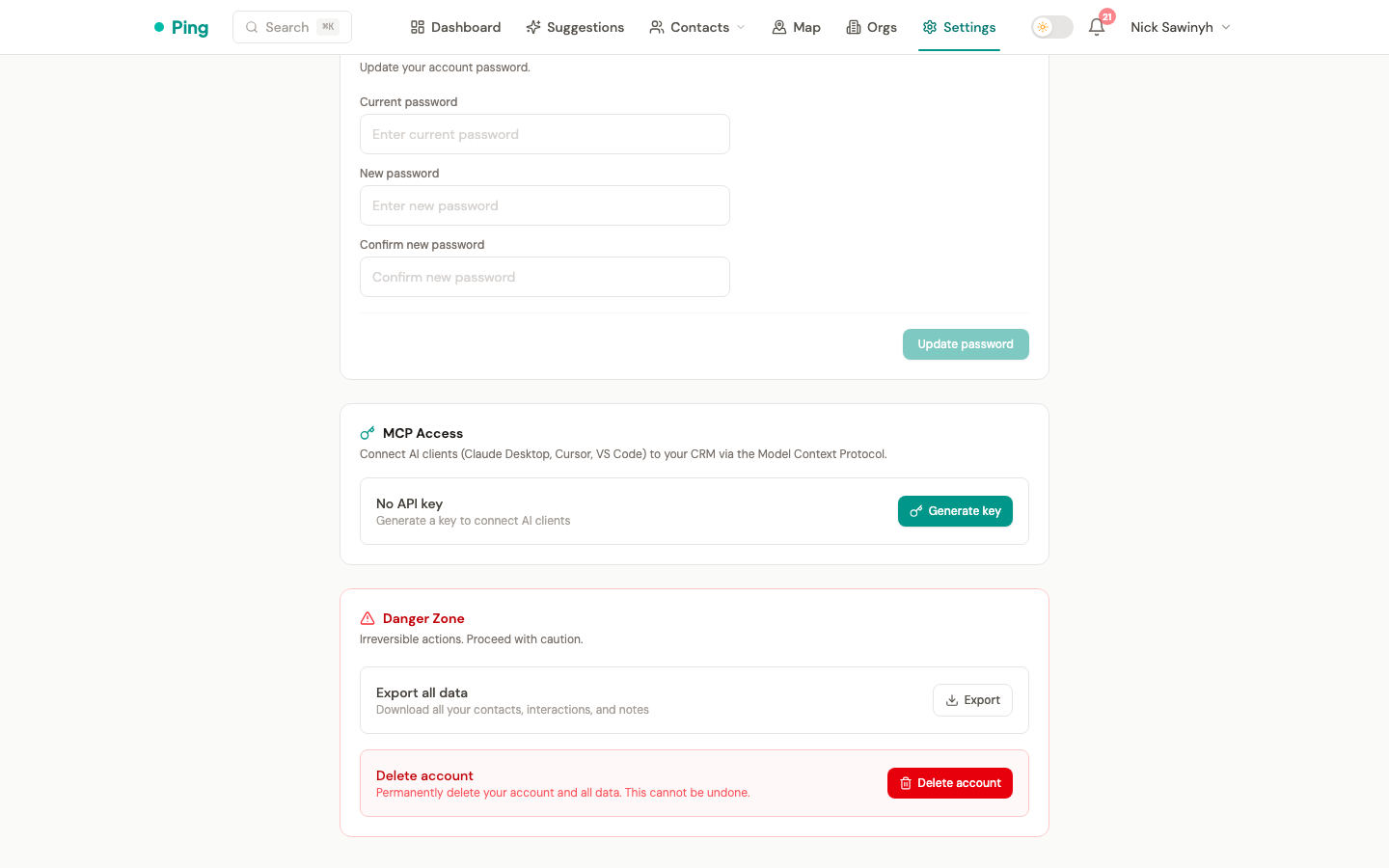
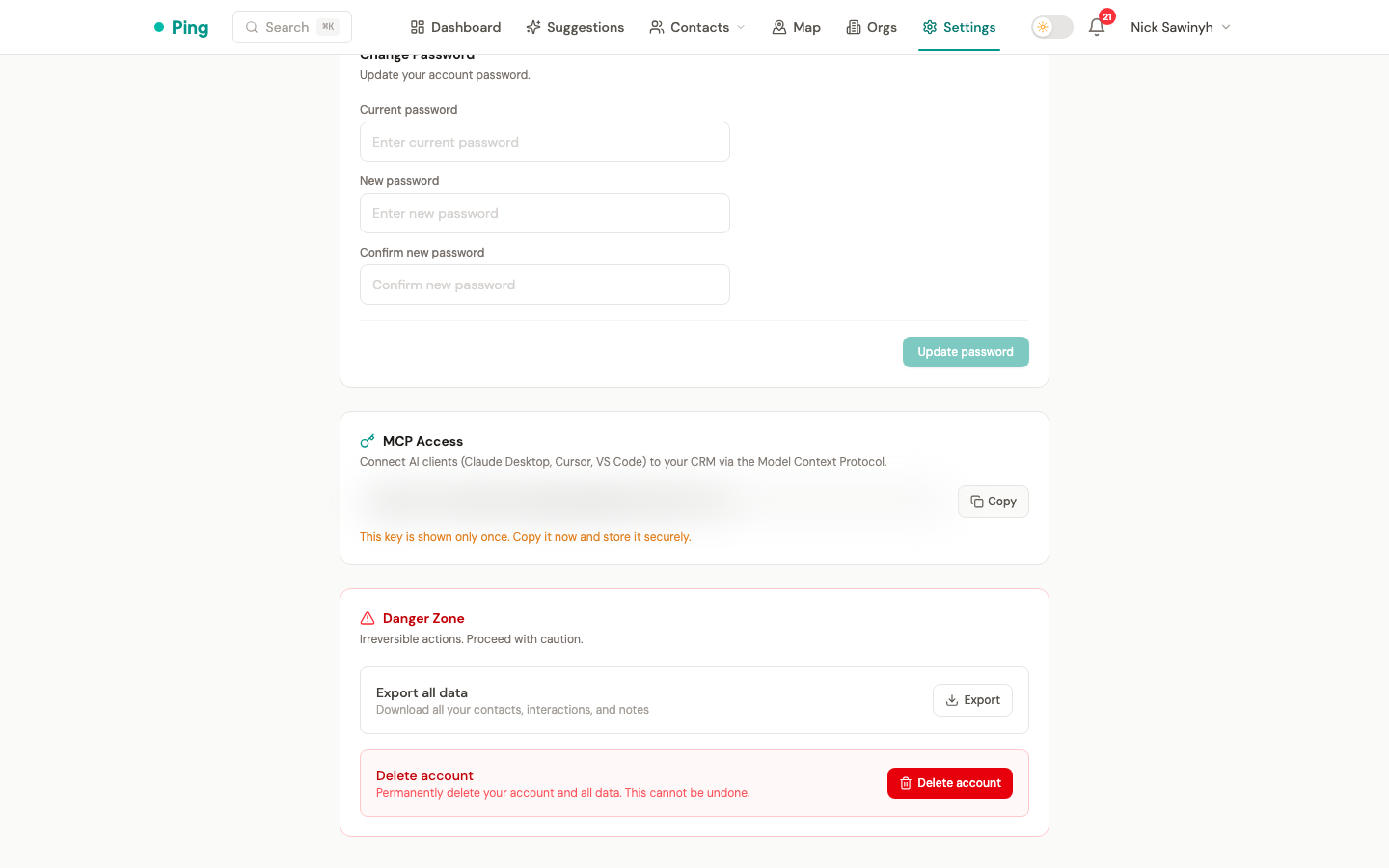
Go to Settings > Account > MCP Access and click Generate key. The key is shown once, so copy it and store it somewhere safe. Keys start with pingcrm_ followed by a random string.
2. Configure Your AI Client
Claude Desktop (local / stdio)
Add to ~/Library/Application Support/Claude/claude_desktop_config.json:
{
  "mcpServers": {
    "pingcrm": {
      "command": "python",
      "args": ["-m", "mcp_server.server"],
      "cwd": "/path/to/pingcrm/backend",
      "env": {
        "DATABASE_URL": "postgresql+asyncpg://user:pass@localhost/pingcrm",
        "SECRET_KEY": "your-secret-key"
      }
    }
  }
}
This runs the MCP server as a local subprocess. It needs no API key and talks over stdin/stdout. Add "--user-email", "you@example.com" to args if the database holds more than one user.
Claude Desktop (remote / stdio via SSH)
{
  "mcpServers": {
    "pingcrm": {
      "command": "ssh",
      "args": [
        "-i", "~/.ssh/your_key",
        "root@your-server.com",
        "cd /opt/pingcrm && docker compose exec -T backend python -m mcp_server.server"
      ]
    }
  }
}
This tunnels stdio over SSH to a remote PingCRM installation.
Remote / SSE (direct HTTP)
For remote access without SSH, use the SSE transport with your API key. The main PingCRM backend serves it at /mcp/sse, and the bundled Caddyfile proxies /mcp/* with response buffering turned off so the stream stays open.
{
  "mcpServers": {
    "pingcrm": {
      "url": "https://your-server.com/mcp/sse",
      "headers": {
        "Authorization": "Bearer pingcrm_your_key_here"
      }
    }
  }
}
Authentication
- stdio mode (local): no authentication. The server runs as a subprocess on your machine.
- SSE mode (remote): a per-user API key in the
Authorization: Bearer <key>header. Requests without a valid key get a 401. PingCRM stores only an HMAC-SHA256 hash of the key (keyed withSECRET_KEY), never the plaintext. The authenticated user is bound to each SSE connection, so concurrent connections from different users never share an identity.
API Key Management
Manage keys from Settings > Account > MCP Access:
- Generate: creates a new key, shown once.
- Revoke: invalidates the key, so clients using it can no longer connect.
- Regenerate: replaces the old key with a new one.
Each user has one key at a time.
Architecture
The MCP server lives at backend/mcp_server/ and queries the PostgreSQL database directly with SQLAlchemy, the same way the Celery workers do. It makes no HTTP API calls.
- Transport: stdio (local) or SSE (remote)
- Standalone SSE:
python -m mcp_server.server --sselistens on127.0.0.1:8808by default (--hostand--portchange this) and enforces the same API key check. - Dependencies: the
mcpPython SDK - User resolution: stdio uses the
--user-emailflag or the only user in the database. SSE looks the user up from the API key hash.