LinkedIn Integration
PingCRM syncs LinkedIn messages and profiles through a Chrome extension. The extension calls LinkedIn's internal Voyager API directly from your browser, so no LinkedIn credentials reach the backend.
Installing the Extension
The PingCRM Chrome extension is not published on the Chrome Web Store. It ships as source from the main PingCRM repository and is installed in developer mode:
- Download the extension source from the PingCRM GitHub repo by cloning the repo or downloading a ZIP and extracting it. The extension lives in the
chrome-extension/folder. - Open
chrome://extensionsin Chrome (or any Chromium browser such as Edge, Brave, or Arc). - Toggle Developer mode on in the top-right corner.
- Click Load unpacked and select the
chrome-extension/folder from the repo. - The PingCRM extension appears in your toolbar. Pin it for easy access.
To update later, git pull in the cloned repo (or re-download the ZIP) and click the reload icon on the extension's card in chrome://extensions.
Extension Pairing
Connecting the extension uses a one-time pairing code instead of a password:
- Open the extension popup and enter your PingCRM Instance URL. Chrome asks you to grant the extension access to that origin.
- The popup then shows a code like
PING-X7K3M2. - Open PingCRM Settings → Integrations → LinkedIn and click Connect.
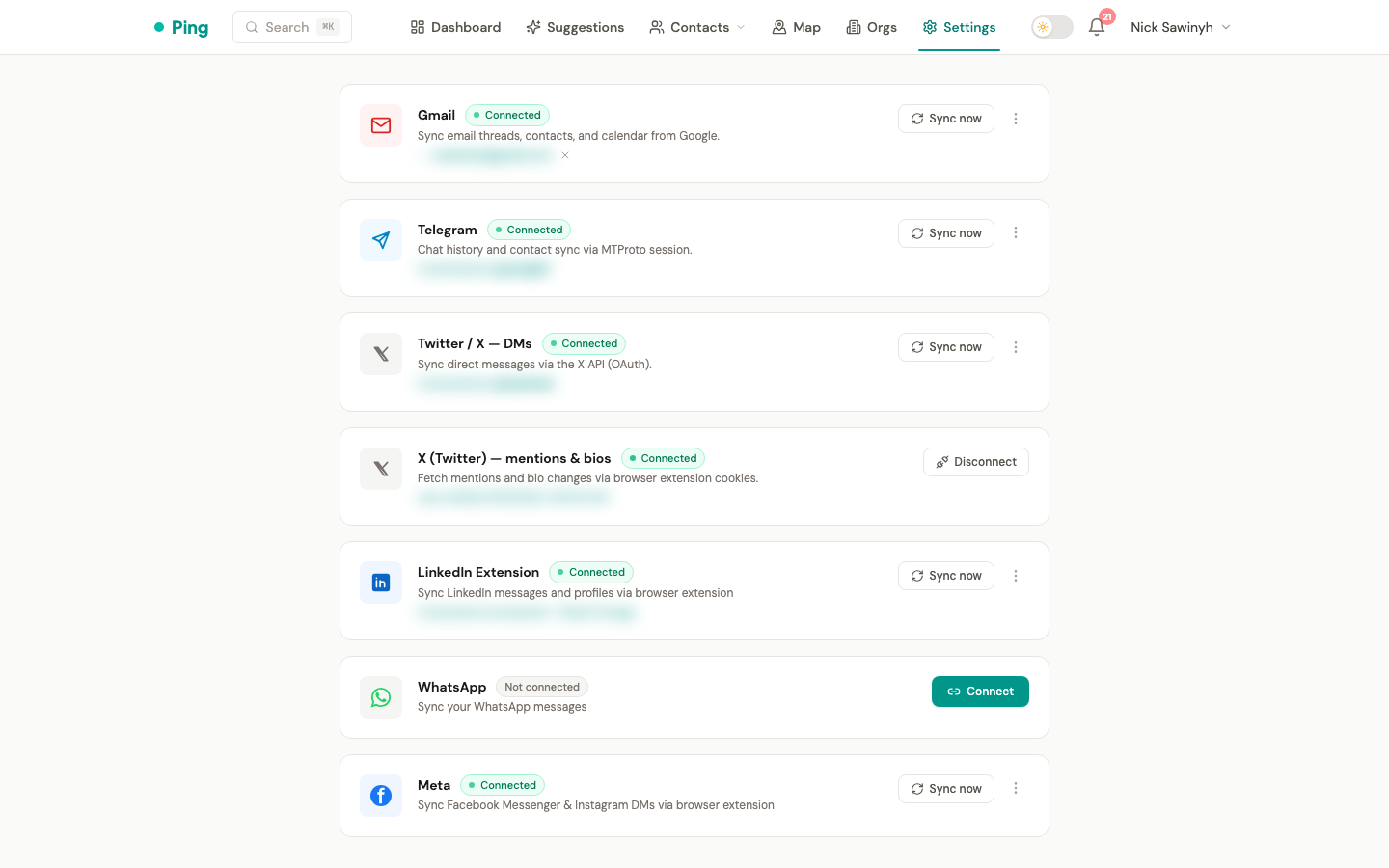
- Enter the code in the modal and click Pair.
- The extension polls the backend and, once matched, shows Connected.
The extension sends data only to your instance URL, and every request it makes to the instance has a timeout so a slow backend cannot stall your PingCRM tab.
Pairing codes expire after 10 minutes, and the popup generates a new one when the old one lapses. The issued token is valid for 30 days and renews silently on use. When a sync receives a 401, the extension exchanges the expired token for a fresh 30-day one through /api/v1/extension/refresh, so you normally see no pairing prompt after the first setup. Tokens more than 90 days past expiry cannot be renewed. The popup then returns to the unpaired view and you re-pair with a new code.
Message Sync
The extension's service worker fetches messages through LinkedIn's Voyager GraphQL API, which gives access to full conversation history and not just what is visible on the page.
On each sync the extension reads your LinkedIn session cookies from the browser and fetches conversations sorted by most recent activity. It stops paginating at messages already seen in a previous sync (the watermark), or at 500 conversations. The first sync looks back 30 days. The extension pushes the parsed results to the backend and never includes LinkedIn cookies.
A 15-minute throttle limits syncs during a browsing session. The popup's Sync Now button bypasses the throttle.
What Gets Synced
The extension syncs people you have LinkedIn conversations with. Anyone you have exchanged messages with becomes a contact in PingCRM, with their most recent message, profile info, and avatar. The P and R buttons the extension adds to the messaging composer let you pull and regenerate AI follow-up suggestions from LinkedIn.
Synced automatically:
- Contacts you have messaged (inbound and outbound)
- Profile data (name, headline, company, location, avatar) through Voyager API backfill
- Up to 500 conversations per sync cycle
Not synced:
- LinkedIn connections you have never messaged
- Profiles you browse but do not message
- Group chat messages
Suggestion Buttons (P and R)
When you open a LinkedIn message composer, the extension adds two small buttons to the toolbar:
- P (Pull): pastes the pending suggestion's draft into the LinkedIn composer. The button is hidden when no pending suggestion exists.
- R (Regenerate): regenerates the AI draft and replaces the composer text with the new version.
The draft goes in through a simulated paste event, so LinkedIn's send button activates normally. Both buttons authenticate with the extension's scoped JWT (aud: pingcrm-extension) against the same /api/v1/suggestions endpoints the web app uses.
Extension Architecture
The extension is built from two main pieces:
- Content script: watches the LinkedIn page for compose areas inside LinkedIn's shadow DOM. When one appears, it adds the P and R buttons and manages the suggestion overlay.
- Service worker: runs the sync. It reads LinkedIn session cookies, calls the Voyager GraphQL API for conversations and profiles, matches a contact by Voyager member ID or profile slug against the backend, and pushes parsed results to
/api/v1/linkedin/push.
When the composer toolbar is detected, the content script asks the service worker for the pending suggestion for that contact (via /api/v1/suggestions); the P button then pastes that cached draft. The R button calls /api/v1/suggestions/{id}/regenerate. The text goes in through a simulated paste event so LinkedIn's React input detects the change.
Profile Backfill
After each sync, the backend identifies contacts missing a job title, company, or avatar. The extension fetches those profiles through the Voyager API and pushes the data back, up to 10 profiles per sync cycle. It reads the current company from the profile's active position (the experience with no end date). It fetches the avatar as image bytes inside the LinkedIn tab, because the backend cannot download from LinkedIn's CDN directly.
Backfill can only enrich contacts whose linkedin_profile_id is a public slug. Contacts created from DMs are often keyed on an anonymized member id (ACo…), which the profile endpoint rejects. Backfill skips those, and profile visits enrich them instead (below).
Profile-Visit Enrichment
When you open someone's LinkedIn profile (/in/<slug>), the extension fetches that person through the Voyager API and pushes their avatar, current company, headline, and location to the backend. The push carries both the public slug and the member id, so the backend can match a contact created from a DM under an anonymized ACo… id, enrich it, and replace its stored identity with the real slug.
This path only enriches existing contacts: opening the profile of someone who is not a contact creates no CRM entry. Each profile is fetched at most once per 10 minutes.
Importing Full History
To import your whole LinkedIn network, including connections you have not messaged, use LinkedIn's data export:
- Go to LinkedIn Data Export and request your data, selecting "Connections".
- Download the archive when it is ready.
- Extract
Connections.csvfrom the archive. - In PingCRM, go to Settings → Import, find the LinkedIn Export card, and upload the CSV (10 MB maximum).
This imports your 1st-degree connections with names, companies, positions, and email addresses. Later extension syncs then add avatars and recent message history to those contacts.
Privacy
The extension reads LinkedIn session cookies (li_at and JSESSIONID) from your browser at the start of every sync and uses them only to authenticate Voyager API calls made from the extension itself. They are never sent to the PingCRM backend. All Voyager requests originate from your browser and your IP address.
Sync Schedule
| Trigger | Behavior |
|---|---|
| Any LinkedIn page visit | Syncs if more than 15 minutes have passed since the last sync |
| Manual "Sync Now" (popup) | Syncs immediately, no throttle |
Sync is event-driven, with no background alarms or scheduled tasks. If your LinkedIn session expires, the popup prompts you to visit linkedin.com so the extension can pick up fresh cookies on your next page visit.