Contact Management
Contacts are the core entity in PingCRM. The contact list and detail pages are where you browse, search, edit, and message the people in your network.
Contact List
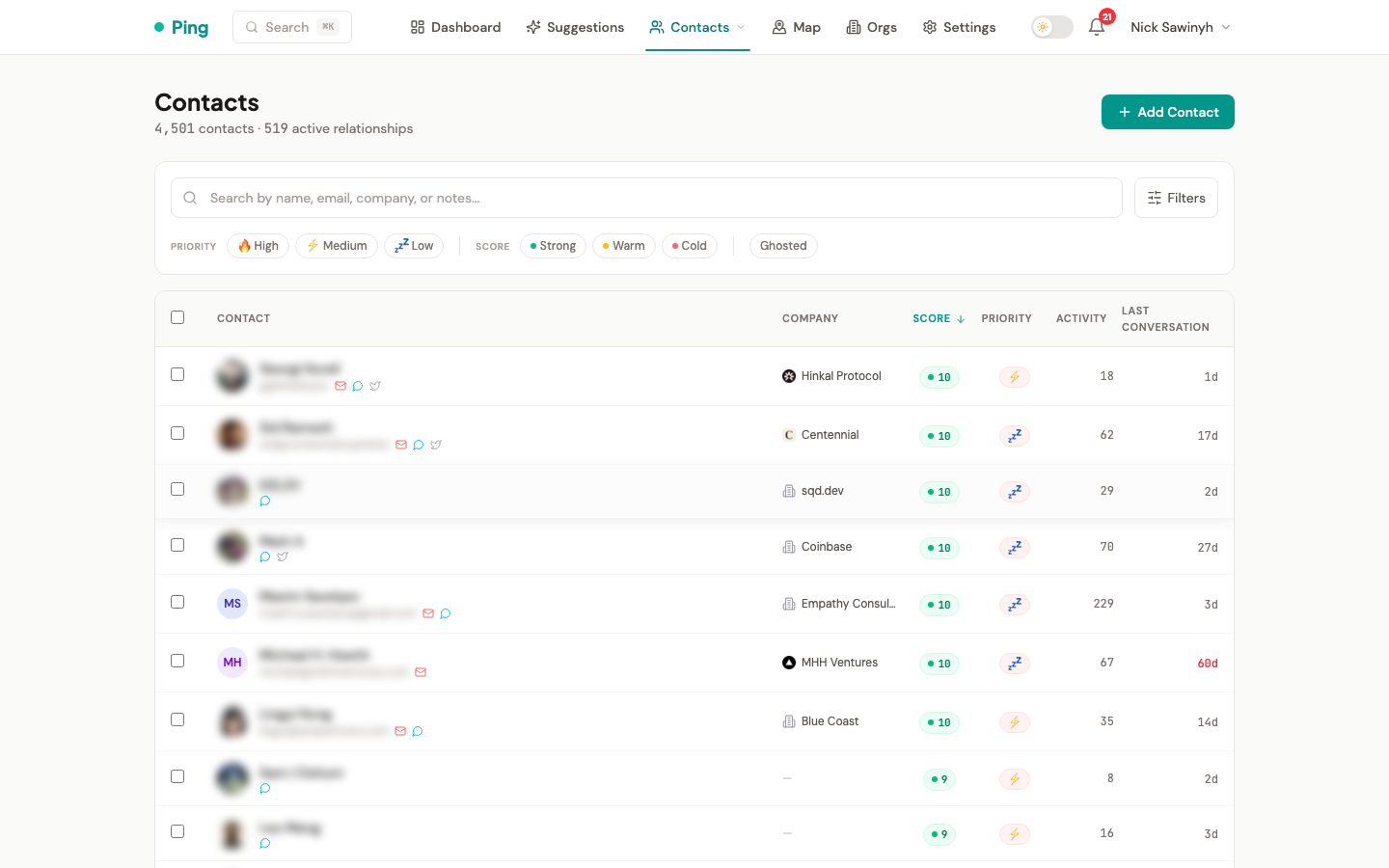
The /contacts page lists your contacts in a searchable, sortable, paginated table.
Search and Filtering
- Full-text search covers contact names, emails, companies, notes, and social handles. A leading
@is ignored, so@usernameandusernamefind the same contacts. Results are ranked by relevance: exact name prefix matches first, then partial name matches, company and title matches, social handle matches, and finally other fields. - Tags narrow results to a group.
- Platform filters by Gmail, Telegram, or Twitter / X.
- Relationship score tiers are Strong (8-10), Warm (4-7), and Cold (0-3).
- Priority chips are High, Medium, and Low.
- Last Contact accepts a preset (7d, 30d, 3mo, 6mo, 12mo) or a custom date range.
- Include archived contacts is a checkbox in the filter panel. Archived contacts are hidden by default and also have their own page at
/contacts/archive.
Sorting
Click a column header to sort. Clicking the active header again returns to the default order. The columns are:
- Contact (date added)
- Company
- Score (default)
- Priority
- Activity (interaction count)
- Last Conversation
The sort query parameter of GET /api/v1/contacts also accepts birthday and overdue.
Pagination
The list loads 20 contacts per page by default, and the API caps page_size at 100. Use the controls at the bottom of the list to change pages.
Bulk Actions
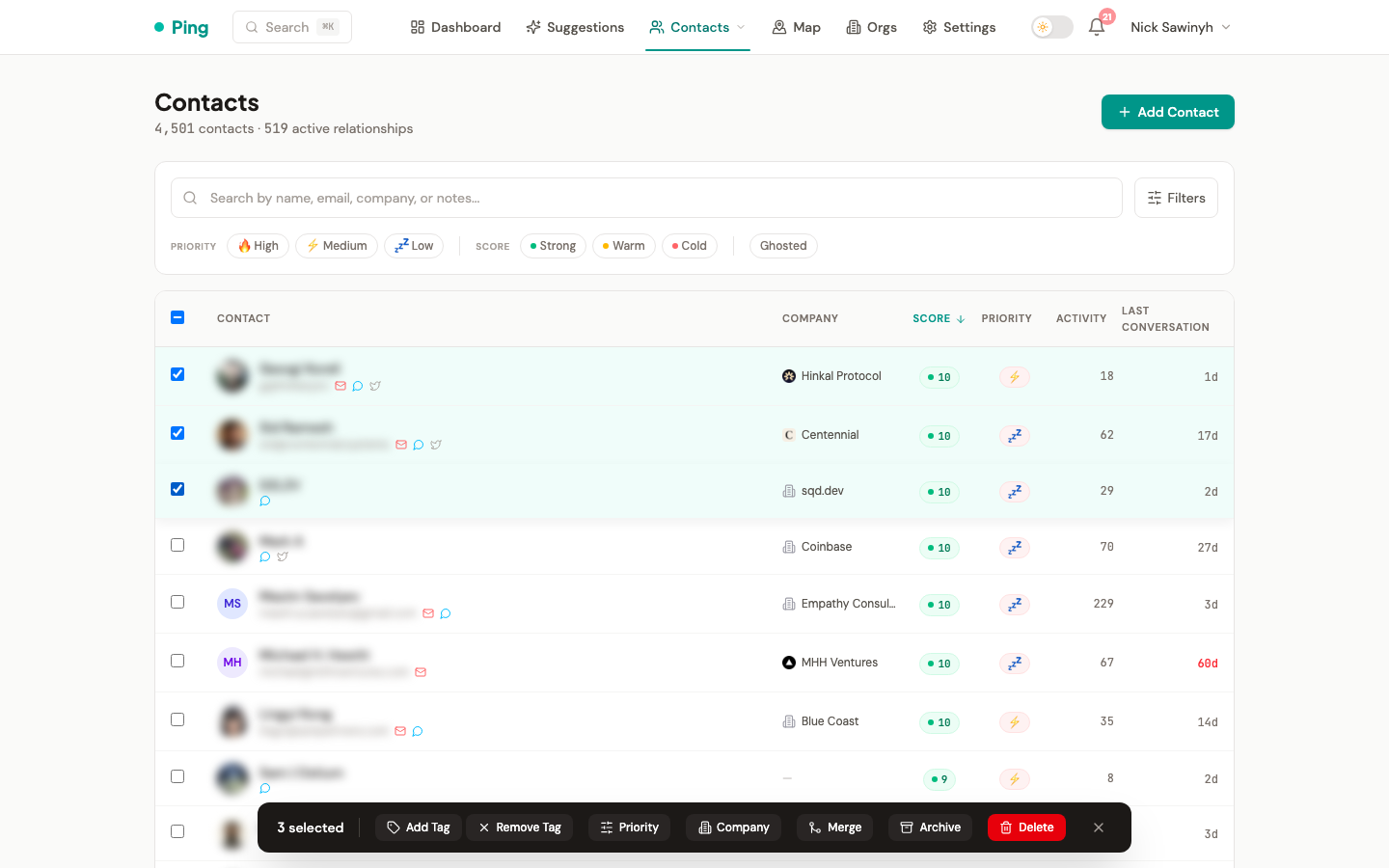
Select contacts in the list to act on them together:
- Set priority level changes priority for every selected contact.
- Set company assigns one company to the selection.
- Add or remove tags applies tag changes across the selection.
- Archive sets the selected contacts to archived and dismisses their pending and snoozed follow-up suggestions.
- Merge combines duplicate contacts from the selection.
- Delete permanently removes the selected contacts.
Priority, company, and tag changes go through POST /api/v1/contacts/bulk-update, which accepts up to 500 contact IDs per request.
2nd Tier Contacts
Contacts tagged "2nd tier" are Telegram group participants you have not messaged directly. Follow-up suggestions skip them. The Telegram sync settings in Settings have a toggle that controls whether 2nd Tier contacts are imported, and a purge button that deletes all of them after a confirmation showing the count.
GET /api/v1/contacts/2nd-tier/countreturns{ count: N }.DELETE /api/v1/contacts/2nd-tierdeletes every 2nd Tier contact and returns{ deleted_count: N }.
Contact Detail
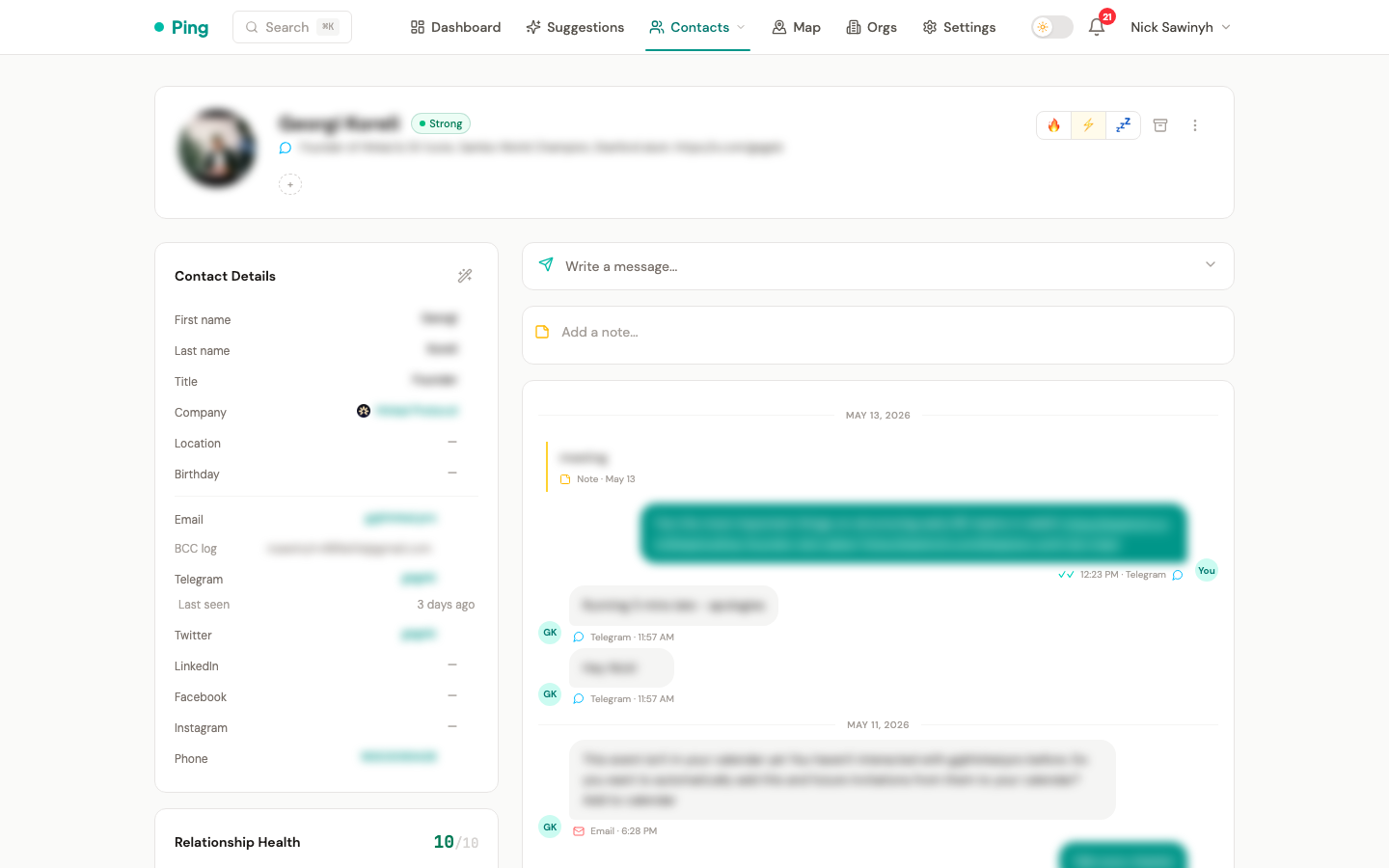
The /contacts/[id] page shows the full profile for a single contact.
Inline Editing
Click a field to edit it in place. Editable fields include first and last name, email, phone, company, title, location, birthday, tags, priority level, and notes.
If you add an email (or Telegram username or Twitter handle) that already belongs to another contact, the save is rejected and a prompt offers to merge the two contacts instead of creating a duplicate.
Company Autocomplete
When you set a contact's company, an autocomplete dropdown suggests existing organizations, so the contact links to the right one instead of creating a duplicate.
Priority Levels
Each contact can be assigned a priority:
- High: key relationships that should not go cold.
- Medium: contacts to check in with periodically.
- Low: casual connections.
- Archived: contacts you no longer want suggestions for.
Relationship Score Badge
A badge shows the contact's computed relationship score. Follow-Up Suggestions explains how it is calculated.
Message Composer
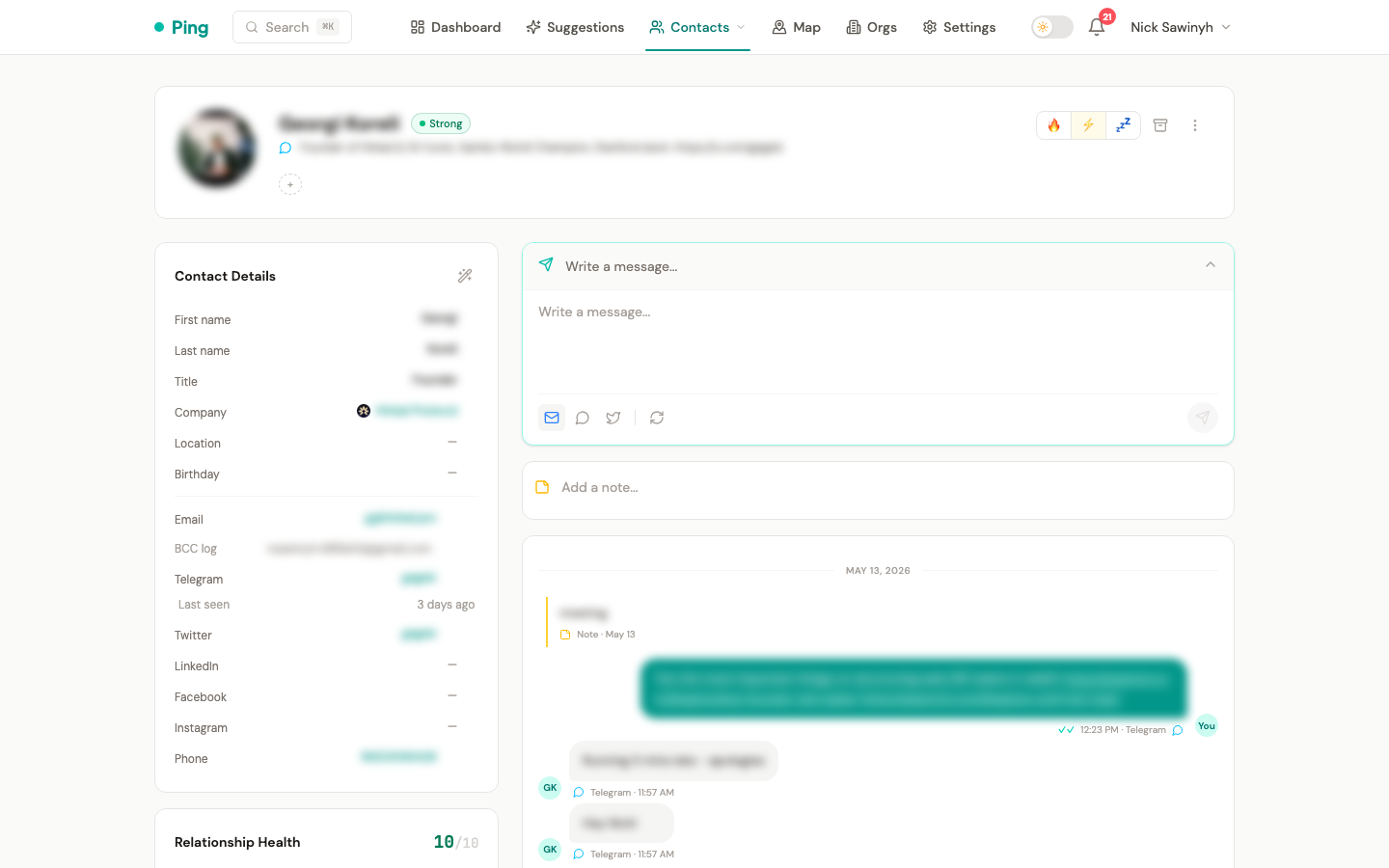
The composer drafts messages with AI for email, Telegram, or Twitter, based on the contact's profile and interaction history. In-app sending works for Telegram only:
- Telegram: the draft is sent directly, and can be scheduled.
- Email: send the draft from your own mail client. BCC addressing logs it to the timeline.
- Twitter: the draft is copied to the clipboard and the contact's profile opens in a new tab. PingCRM does not send Twitter DMs.
- LinkedIn: messages go through the Chrome extension.
When the composer gets a 429 (rate limit) response, it shows a countdown until the next request is allowed.
BCC Email Logging
Each contact has a unique BCC address built from your login email plus a per-contact suffix (for example you+c7f3a2b@gmail.com). BCC it from any mail client and the email is logged to that contact's timeline. See Gmail Integration, BCC Email Logging.
Interaction Timeline
A chronological timeline of all interactions with the contact, including:
- Sent and received messages across all platforms.
- Emails logged via BCC addressing.
- Manually added notes.
- Logged meetings.
- Bio change events (detected from Twitter and Telegram).
- Read receipts for Telegram messages (single check = delivered, double check = read).
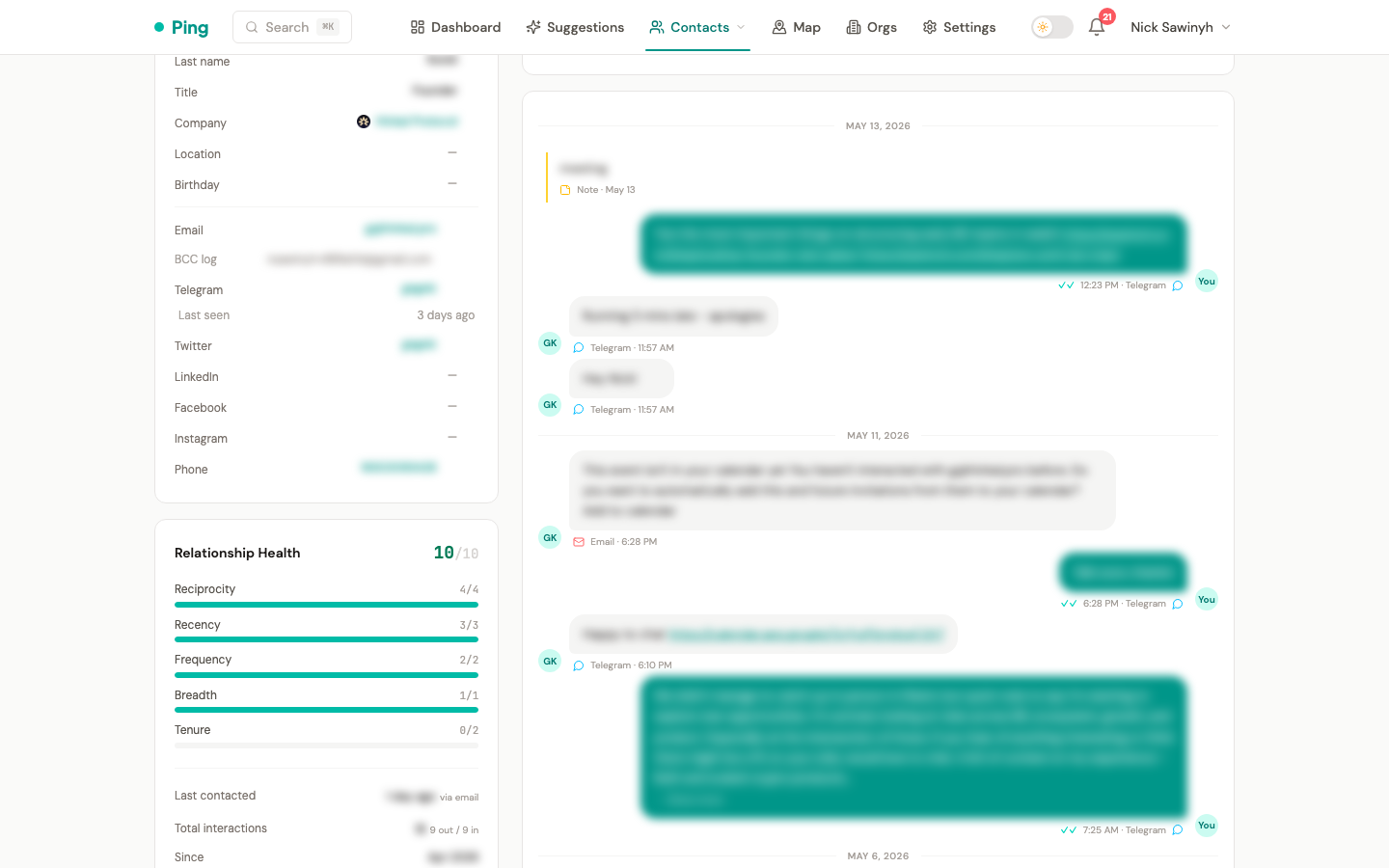
Messages longer than 400 characters are truncated with a "Show more" button. Click it to expand the full message.
Hover over a manually added note to edit or delete it from the timeline.
When a sync brings in an interaction newer than a pending follow-up suggestion for that contact, the suggestion is dismissed automatically. Backfilled old messages do not dismiss newer suggestions.
Auto-Sync on Page Visit
Opening a contact's detail page starts background syncs of that contact's emails (when it has an email address), Telegram messages (when it has a Telegram username), and avatar. The Refresh details item in the kebab menu also refreshes bios and Twitter DMs.
Telegram Common Groups
A sidebar card lists the Telegram groups you share with the contact.
Duplicate Detection
PingCRM flags potential duplicates by matching email addresses, names, and cross-platform identifiers. You can review and merge them from the contact page or from Identity Resolution.
Contacts that share an exact email or phone number are merged automatically after Gmail, Telegram, LinkedIn, and Google Calendar syncs.
Apollo Enrichment
Apollo's People Match API can fill in missing details. Open the kebab menu on the contact detail page and select Enrich with Apollo. The item is disabled when the contact has neither an email nor a LinkedIn URL.
The lookup uses the contact's first email, or the LinkedIn URL when there is no email. It only fills empty fields and never overwrites data you entered. It can populate name, title, company, location, LinkedIn URL, Twitter handle, avatar, phone numbers, and email addresses.
POST /api/v1/contacts/{contact_id}/enrich returns source: "apollo" and the list of fields that were updated.
Setup: set the APOLLO_API_KEY environment variable. Without it the enrichment request fails. See the Setup guide.
Auto-tag with AI
The same menu has Auto-tag with AI, which assigns tags to the contact from your approved tag taxonomy.
Magic Wand (AI Bio Extraction)
The wand icon in the Contact Details panel header uses AI to extract structured data from a contact's bios and clean up messy name fields.
How it works:
- Click the wand icon in the Contact Details sidebar.
- The system collects the contact's Twitter bio, Telegram bio, LinkedIn bio and headline, and current name fields.
- Claude Haiku turns them into structured JSON.
- The extracted data is applied to the contact and their linked organization.
What it extracts:
- Name normalization splits combined name fields like "Anders | LoopFi" into first name ("Anders") and company ("LoopFi").
- Title comes from the bios (for example "Head of BD" from a Twitter bio).
- Company is extracted, and the contact is linked to an organization, which is created if needed.
- Company details (website, industry, location) are written to the organization record.
- Organization logo is downloaded from the extracted website when the organization has none.
Behavior:
- Name fields are always updated, to fix normalization issues.
- Title and company are only filled when empty.
- Organization website, industry, and location are only filled when empty on the organization.
- The button appears when the contact has a Twitter bio, a Telegram bio, or a name.
API: POST /api/v1/contacts/{contact_id}/extract-bio returns { fields_updated: [...], source: "ai_bio" }.
Importing Contacts
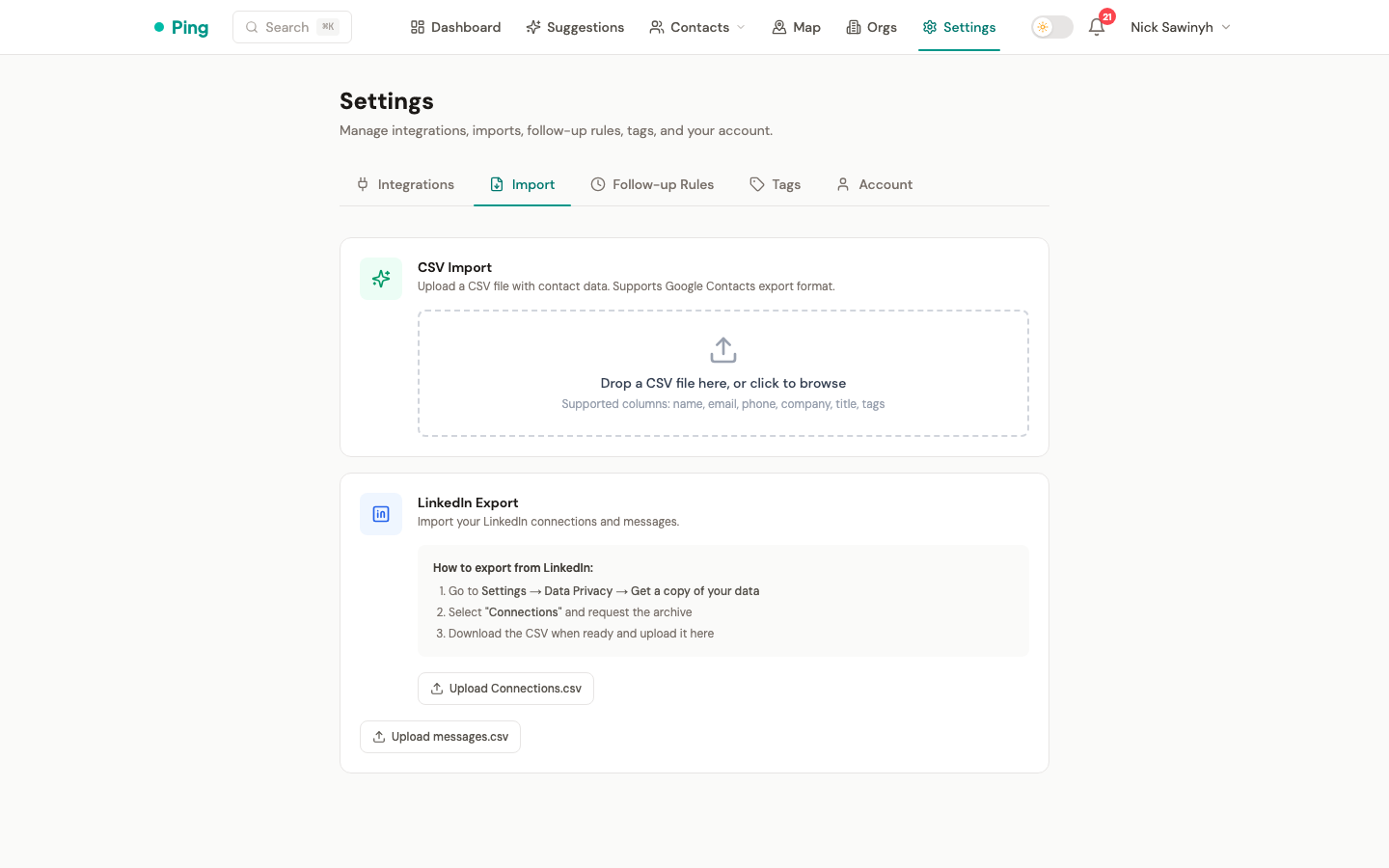
There are four ways to add contacts:
- CSV Upload: bulk import from a CSV file with column mapping. Files are limited to 10MB. Each row is imported independently, so a bad row is reported as
Row N: ...in the result and the other rows still import. - LinkedIn CSV Import: upload
Connections.csvfrom LinkedIn's data export (also limited to 10MB). - Google Contacts Sync: imports contacts from every Google account linked to your login.
- Manual Entry: add contacts one at a time through the UI.
The LinkedIn Chrome extension also creates contacts from your LinkedIn conversations during message sync.